Setting up Provider IPTV takes about 5 minutes, regardless of which device you use. No technical skills are required — just follow the steps below and you will be watching live TV in no time. If you run into any issues, our 24/7 support team is ready to help via WhatsApp.
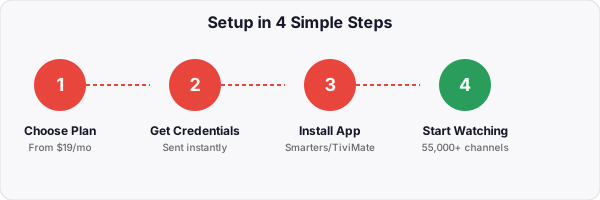
Step 1: Choose Your Plan
Visit our pricing page and select the subscription that fits your needs:
- 1 Month — $19 (great for trying the service)
- 3 Months — $39 (save 32%)
- 6 Months — $59 (save 48%)
- 12 Months — $79 (best value, save 65%)
Complete your payment securely. We accept major credit and debit cards, PayPal, and cryptocurrency.
Step 2: Get Your Credentials
Activation is instant. Within seconds of your payment being confirmed, you will receive an email containing:
- Server URL (also called the portal or host address)
- Username
- Password
Keep these credentials safe — you will need them to log in on each device. If you do not see the email within a few minutes, check your spam or junk folder. You can also contact us on WhatsApp for immediate assistance.
Step 3: Set Up on Your Device
Follow the instructions for your specific device below. The process is similar across all platforms — download an IPTV app and enter your credentials.
Amazon Firestick and Fire TV
The Firestick is the most popular device for IPTV. Here is how to set it up:
- From your Firestick home screen, go to Settings > My Fire TV > Developer Options and enable Apps from Unknown Sources (also called “Install Unknown Apps”).
- Open the Amazon App Store and search for Downloader. Install it.
- Open Downloader and enter the download URL for IPTV Smarters Pro or TiviMate. Follow the on-screen prompts to install the app.
- Open the IPTV app and select Xtream Codes API as the login method.
- Enter your Server URL, Username, and Password from the email you received.
- Tap Login or Add User. Your channel list will load within a few seconds.
Recommended app: TiviMate offers the best experience on Firestick with a clean TV-style interface, EPG (program guide), and favorites support.
Android Phone or Box
- Open the Google Play Store and search for IPTV Smarters Pro. Install it.
- Open the app and select Login with Xtream Codes API.
- Enter your Server URL, Username, and Password.
- Tap Add User. Your channels, VOD library, and series will appear in the main menu.
This method works the same on Android TV boxes like the Nvidia Shield, Xiaomi Mi Box, and generic Android boxes.
Smart TV Setup (Samsung and LG)
- On your Samsung or LG Smart TV, open the built-in app store (Samsung: Smart Hub / LG: LG Content Store).
- Search for IPTV Smarters or Smart IPTV and install it.
- Open the app, select Xtream Codes API, and enter your credentials.
- Your channels will load automatically. Use your TV remote to browse and select channels.
If the app is not available in your TV app store, you can use the web player through the TV built-in browser, or connect a Firestick to your HDMI port instead.
iPhone and iPad (iOS)
- Open the App Store and search for GSE Smart IPTV or IPTV Smarters. Download and install.
- Open the app and tap the + button to add a new playlist.
- Select Xtream Codes API and enter your Server URL, Username, and Password.
- Tap Save or Login. Your channels and VOD content will load.
Tip: GSE Smart IPTV is the most reliable option for iOS devices and supports picture-in-picture mode, so you can browse your phone while watching TV.
PC or Mac
You have two options for watching on a computer:
Option A — VLC Media Player (free):
- Download and install VLC Media Player from videolan.org.
- Open VLC and go to Media > Open Network Stream.
- Paste your M3U playlist URL (provided in your activation email) and click Play.
Option B — Web Player:
- Open any web browser (Chrome, Firefox, Edge, Safari).
- Navigate to the web player URL provided in your activation email.
- Log in with your Username and Password. Start watching directly in the browser — no software installation needed.
Troubleshooting Common Issues
Most issues can be resolved in under a minute. Here are solutions to the most common problems:
Buffering or freezing:
- Restart your router and device
- Switch from Wi-Fi to an Ethernet cable for a more stable connection
- Lower the stream quality in your app settings (try 720p instead of 1080p)
- Close other apps or devices that may be using bandwidth
- Try using a VPN if your ISP is throttling streaming traffic
EPG (program guide) not loading:
- Go to your app settings and tap Update EPG or Refresh Guide
- Make sure the EPG source URL is correctly entered (check your activation email)
- Wait a few minutes — the EPG data can take time to download on first load
Channel list is empty or not loading:
- Double-check your Server URL, Username, and Password for typos
- Make sure you selected Xtream Codes API as the login method (not M3U)
- Force-close the app and reopen it
- Contact support if the issue persists — we can verify your account status instantly
Audio out of sync:
- Switch the audio track in your player (most apps have an audio button in the playback controls)
- In VLC, go to Tools > Track Synchronization and adjust the audio delay
- Try switching to a different stream of the same channel (many channels have multiple feeds)
If none of these solutions work, do not hesitate to reach out. Our support team can remotely troubleshoot most issues within minutes.