IPTV Service Providers for Firestick [Setup Guide]
Setup Guide 2026
Finding reliable IPTV service providers for Firestick is the first step to cutting cable on your Amazon Fire TV device. This guide walks you through complete setup with IPTV Smarters and TiviMate, compares the best apps, and solves common Firestick issues.
Choosing the right IPTV service providers for Firestick determines whether you get smooth 4K streams or constant buffering and crashes. Amazon Fire TV Stick is the most popular IPTV streaming device in the US — it is affordable, compact, and runs Android-based apps that make IPTV setup straightforward. This guide from Provider IPTV covers everything you need: which providers actually work well on Firestick, step-by-step setup for the two best IPTV apps, and how to fix every common problem.
Jump to: What you need · Setup with IPTV Smarters · Setup with TiviMate · What to look for · Troubleshooting · FAQ
IPTV service providers for Firestick: what you need
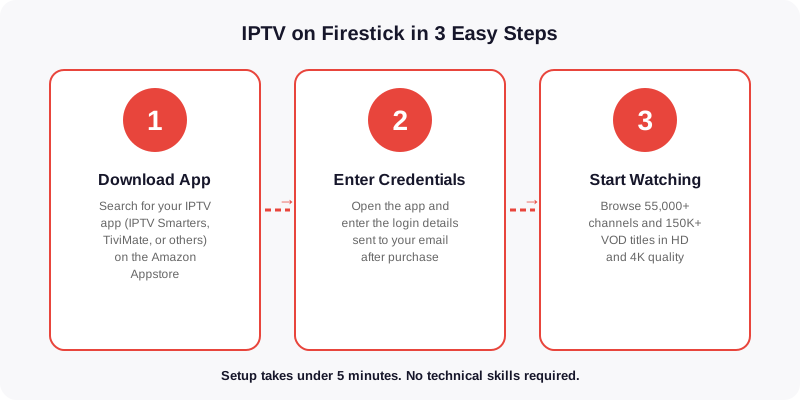
Before you start, make sure you have these essentials ready:
- Amazon Fire TV Stick — any generation works, but the Fire TV Stick 4K Max or Fire TV Stick 4K delivers the best performance. Older 1080p sticks work fine for standard-definition channels but may struggle with 4K content.
- Stable internet connection — IPTV requires a minimum of 15 Mbps for HD streams and 25 Mbps or more for 4K. Wired Ethernet via a USB adapter is ideal; if you use Wi-Fi, connect to your 5 GHz band and keep the Firestick within clear line of sight to your router.
- An active IPTV subscription — you need M3U URL or Xtream Codes login credentials (server URL, username, password) from your provider. Provider IPTV plans start at $6.58/mo and include full Firestick compatibility.
- Downloader app or sideloading knowledge — most IPTV apps are not available in the Amazon App Store. You will need to enable “Apps from Unknown Sources” in your Firestick settings and install apps using the Downloader app (available free in the Amazon App Store).
Once you have these ready, you can set up IPTV in under 10 minutes using either IPTV Smarters or TiviMate.
IPTV service providers for Firestick: setup with IPTV Smarters
IPTV Smarters Pro is the most widely used IPTV player and the easiest to set up on Firestick. It supports Xtream Codes API login, which means you just enter your server URL, username, and password — no M3U URL needed. Here is the complete setup process:
- Enable unknown sources — on your Firestick, go to Settings > My Fire TV > Developer Options and toggle on Apps from Unknown Sources. On newer Firestick models, this may appear under Settings > My Fire TV > Developer Options > Install Unknown Apps.
- Install the Downloader app — open the Amazon App Store on your Firestick, search for “Downloader” (by AFTVnews), and install it. This is a free, legitimate app used to sideload APKs.
- Download IPTV Smarters Pro — open Downloader and enter the official IPTV Smarters download URL. The APK will download automatically. When prompted, tap “Install.”
- Launch IPTV Smarters — open the app from your Firestick home screen under “Your Apps & Channels.” Accept the terms of use.
- Select Xtream Codes API login — on the login screen, choose “Login with Xtream Codes API” (not “Load Your Playlist”). This is the recommended method for most IPTV providers.
- Enter your credentials — type in the server URL, username, and password provided by your IPTV service. For Provider IPTV, these are sent to your email immediately after purchase.
- Select a player — IPTV Smarters will ask you to choose a built-in player. Select the default player for the best compatibility.
- Browse and stream — you will see categories for Live TV, Movies, Series, and Catch-Up. Navigate to any channel and press the center button on your Firestick remote to start streaming.
The entire process takes about 5 minutes. If you run into issues, see the troubleshooting section below.
IPTV service providers for Firestick: setup with TiviMate
TiviMate is widely considered the best IPTV player for Firestick and Android TV. It has a cleaner interface, faster channel switching, and a better electronic program guide (EPG) than IPTV Smarters. The free version works well; TiviMate Premium (a one-time purchase) unlocks recording, multiple playlists, and catch-up features. Here is how to set it up:
- Enable unknown sources — same as above: Settings > My Fire TV > Developer Options > Apps from Unknown Sources (or Install Unknown Apps).
- Install TiviMate — TiviMate is available directly in the Amazon App Store. Search for “TiviMate IPTV Player” and install it. No sideloading required.
- Launch TiviMate — open the app and you will be prompted to add a playlist.
- Choose Xtream Codes login — select “Xtream Codes” as the playlist type. This is the cleanest setup method and gives you full EPG support.
- Enter your credentials — type your server URL, username, and password. TiviMate will connect and load your channel list. This may take 30 to 60 seconds depending on the size of the playlist.
- Wait for the EPG to load — TiviMate will automatically download the electronic program guide. This can take 1 to 3 minutes for large playlists (like Provider IPTV with 55,000+ channels). Let it finish before browsing.
- Customize your experience — press the left button on your remote to open the sidebar. From there you can set favorite channels, organize groups, change the EPG layout, and adjust stream buffer settings.
- Start watching — navigate to any channel and click. TiviMate switches channels significantly faster than most other IPTV apps.
TiviMate is the preferred choice of experienced IPTV users on Firestick. If you are new to IPTV, starting with IPTV Smarters is easier, but upgrading to TiviMate later is worth it.
Best IPTV service providers for Firestick: what to look for
Not every IPTV provider works well on Firestick. The Fire TV Stick has limited processing power compared to a phone or PC, so provider quality matters more. Here is what separates good Firestick-compatible providers from bad ones:
- Xtream Codes API support — providers that offer Xtream Codes login make setup faster and deliver better EPG integration. Avoid providers that only give you a raw M3U link with no API access.
- Optimized server infrastructure — Firestick is sensitive to server response time. Providers with US-based or region-specific servers reduce latency and buffering. Provider IPTV runs anti-buffer servers optimized for North American users.
- Reasonable channel count with working streams — a provider claiming 100,000+ channels often has thousands of dead links. Look for providers with curated, working channel lists. Provider IPTV offers 55,000+ live channels and 150,000+ VOD titles, all actively maintained.
- Multiple app compatibility — a good provider works with TiviMate, IPTV Smarters, GSE Smart IPTV, and any standard M3U player. If a provider locks you into their own proprietary app, that is a red flag.
- 4K and FHD stream availability — Firestick 4K and 4K Max support ultra-high-definition streaming. Your provider should offer 4K channels to take advantage of this hardware.
- Responsive customer support — Firestick setup issues are common, especially for first-time users. 24/7 support makes a significant difference. Provider IPTV offers round-the-clock live chat and WhatsApp support.
For a detailed comparison of providers, check our top IPTV providers ranking or our best IPTV provider in the USA guide.
| App | Platform | Ease of setup | Best for |
|---|---|---|---|
| IPTV Smarters Pro | Firestick, Android, iOS, PC, Smart TV | Very easy | Beginners, cross-platform users |
| TiviMate | Firestick, Android TV | Easy | Power users, best EPG and zapping |
| GSE Smart IPTV | Firestick, iOS, Android | Moderate | iOS users, free option |
| OTT Navigator | Firestick, Android | Advanced | Customization, multi-playlist |
| XCIPTV Player | Firestick, Android TV | Easy | Clean UI, lightweight |
IPTV service providers for Firestick: troubleshooting
Firestick IPTV issues are almost always fixable. Here are the most common problems and their solutions:
Buffering or freezing during playback
- Switch from Wi-Fi to a wired Ethernet connection using a USB OTG adapter. This alone fixes most buffering issues.
- If you must use Wi-Fi, move the Firestick closer to your router or switch to the 5 GHz band. The 2.4 GHz band is slower and more prone to interference.
- Clear the cache of your IPTV app: Settings > Applications > Manage Installed Applications > [your IPTV app] > Clear Cache.
- Use a VPN to bypass ISP throttling. Some internet providers intentionally slow down IPTV traffic. A fast VPN like IPVanish or Surfshark can restore full speed.
- In TiviMate, increase the buffer size: go to Settings > Playback > Buffer Size and set it to “Higher” or “Highest.”
App crashes or will not open
- Restart your Firestick by holding the Select and Play/Pause buttons simultaneously for 5 seconds.
- Uninstall and reinstall the IPTV app.
- Check that your Firestick has enough free storage. Go to Settings > My Fire TV > About > Storage. If it is nearly full, delete unused apps.
“Connection failed” or “Server not found” errors
- Double-check your Xtream Codes credentials (server URL, username, password). A single typo will prevent connection.
- Verify that your subscription is active. Log into your provider account or contact support.
- Try switching between Xtream Codes login and M3U URL login. Some providers work better with one method over the other.
No EPG (program guide) showing
- In TiviMate, go to Settings > EPG > Update on App Start and enable it. Then force an EPG refresh.
- In IPTV Smarters, go to Settings > Streams > Auto Update EPG and toggle it on.
- If the EPG still does not load, contact your provider. The issue is likely on the server side.
Audio out of sync or no audio
- Change the audio track: press the menu button on your remote during playback and select a different audio stream.
- In TiviMate, switch the player engine from the default to ExoPlayer or vice versa under Settings > Playback > Player.
- Disable Dolby Digital passthrough in Firestick Settings > Display & Sounds > Audio > Dolby Digital Output and set it to “Stereo.”
IPTV service providers for Firestick FAQ
Ready to set up IPTV on your Firestick?
55,000+ channels. 4K quality. Works with TiviMate, IPTV Smarters, and every major app. 7-day money-back guarantee.
IPTV service providers for Firestick FAQ
What are the best IPTV service providers for Firestick in 2026?
How do I install an IPTV app on my Amazon Firestick?
Which Firestick model works best with IPTV service providers?
Why does my IPTV buffer on Firestick and how do I fix it?
Can I use a VPN with IPTV service providers on Firestick?
Do IPTV service providers for Firestick support voice control with Alexa?
Ready to try the best IPTV in the USA?
55,000+ channels. Plans from $6.58/mo. 7-day money-back guarantee.
See pricing